Accepting Your Invitation
When an administrator invites you to a Factory AI workspace, you'll receive an email with a link to set up your account. This guide walks you through accepting that invitation.
What you'll need
- A modern desktop or mobile browser (we recommend Google Chrome or Firefox)
- The invitation email from Factory AI
- Access to the email inbox the invite was sent to (you'll receive a verification code there)
The Invitation Flow
Setting up your account takes about a minute and follows five steps:
- Open the invitation email and click Accept invitation
- Confirm your email address
- Enter the 6-digit verification code we email you
- Set a password
- (Recommended) Add a passkey for faster sign-in
Step 1: Open the Invitation Email
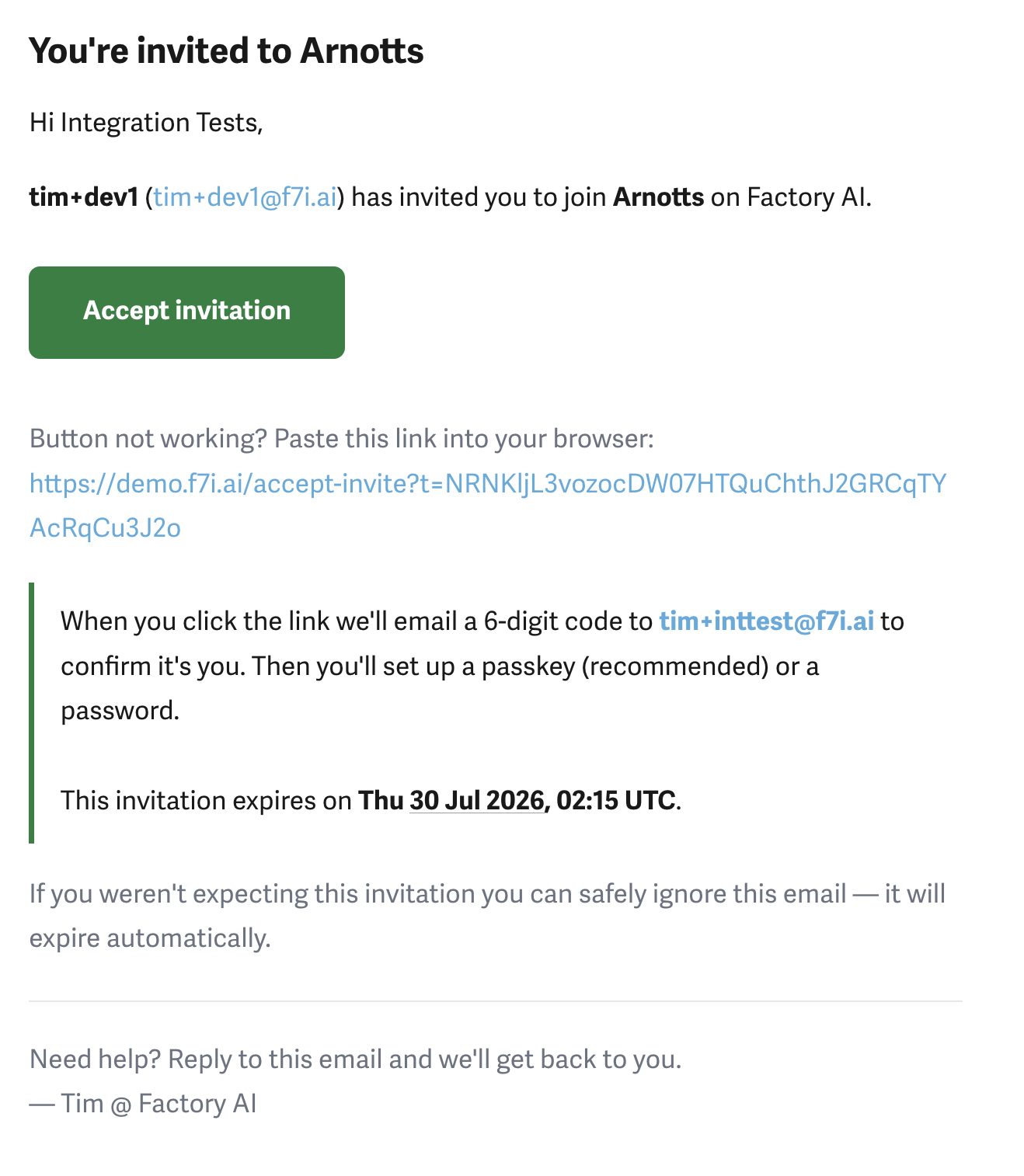
You'll receive an email titled "You're invited to [Workspace Name]" from Factory AI. The email shows:
- Who invited you (their name and email)
- The workspace you've been invited to join
- A green Accept invitation button
- A backup link in case the button doesn't work
- The expiration date for your invitation
Click Accept invitation to begin. If the button doesn't work, copy the link below it and paste it into your browser.
Invitations expire after a set period (typically 90 days). If your invite has expired, ask the person who invited you to send a new one.
Step 2: Confirm Your Email
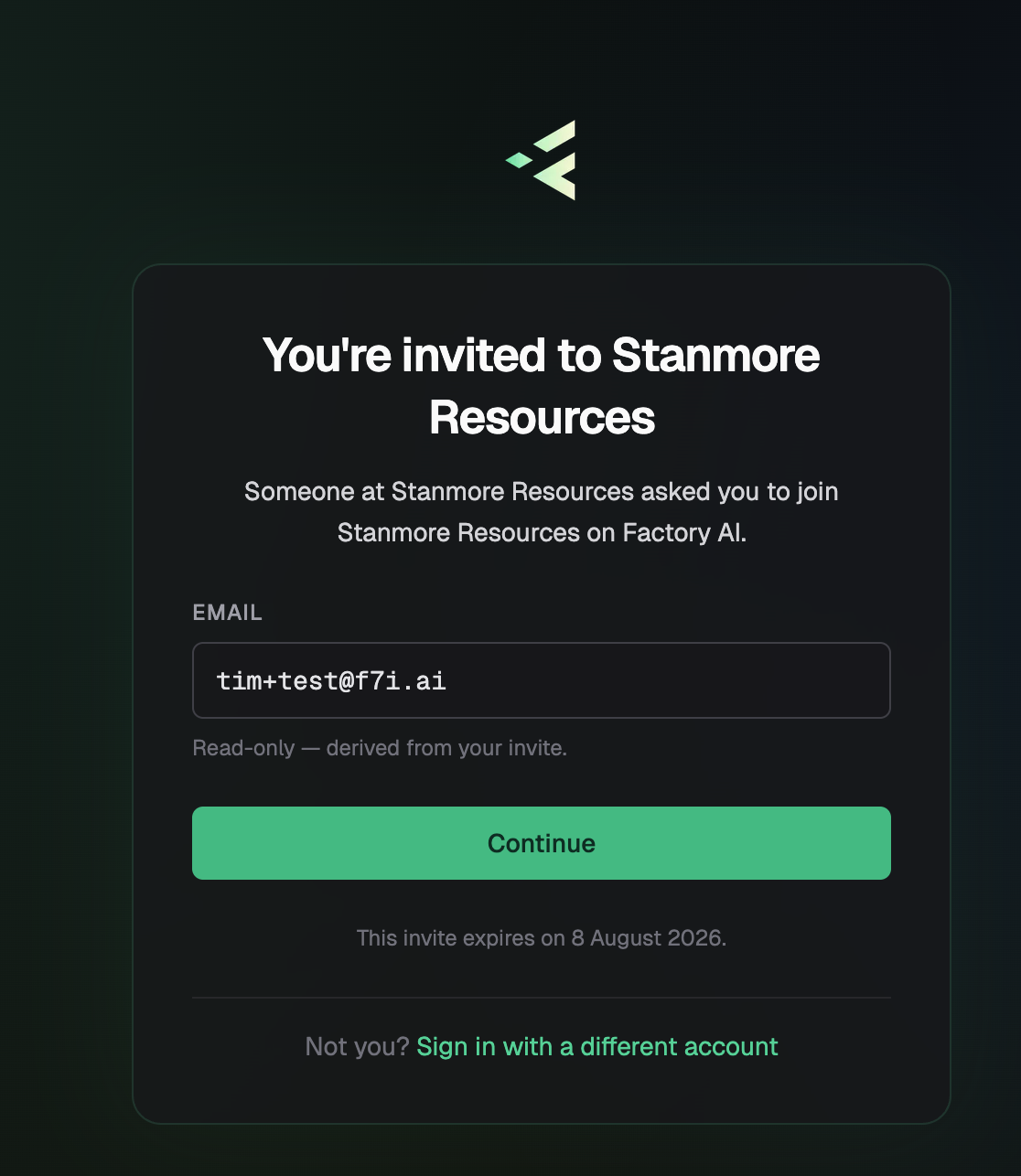
The acceptance page shows the email address tied to your invite. This field is read-only — it has to match the address the invitation was sent to.
- Verify the email shown is correct
- Click Continue
If the address looks wrong, the invite was sent to a different email. Ask the person who invited you to resend it to the correct address.
Step 3: Enter the Verification Code
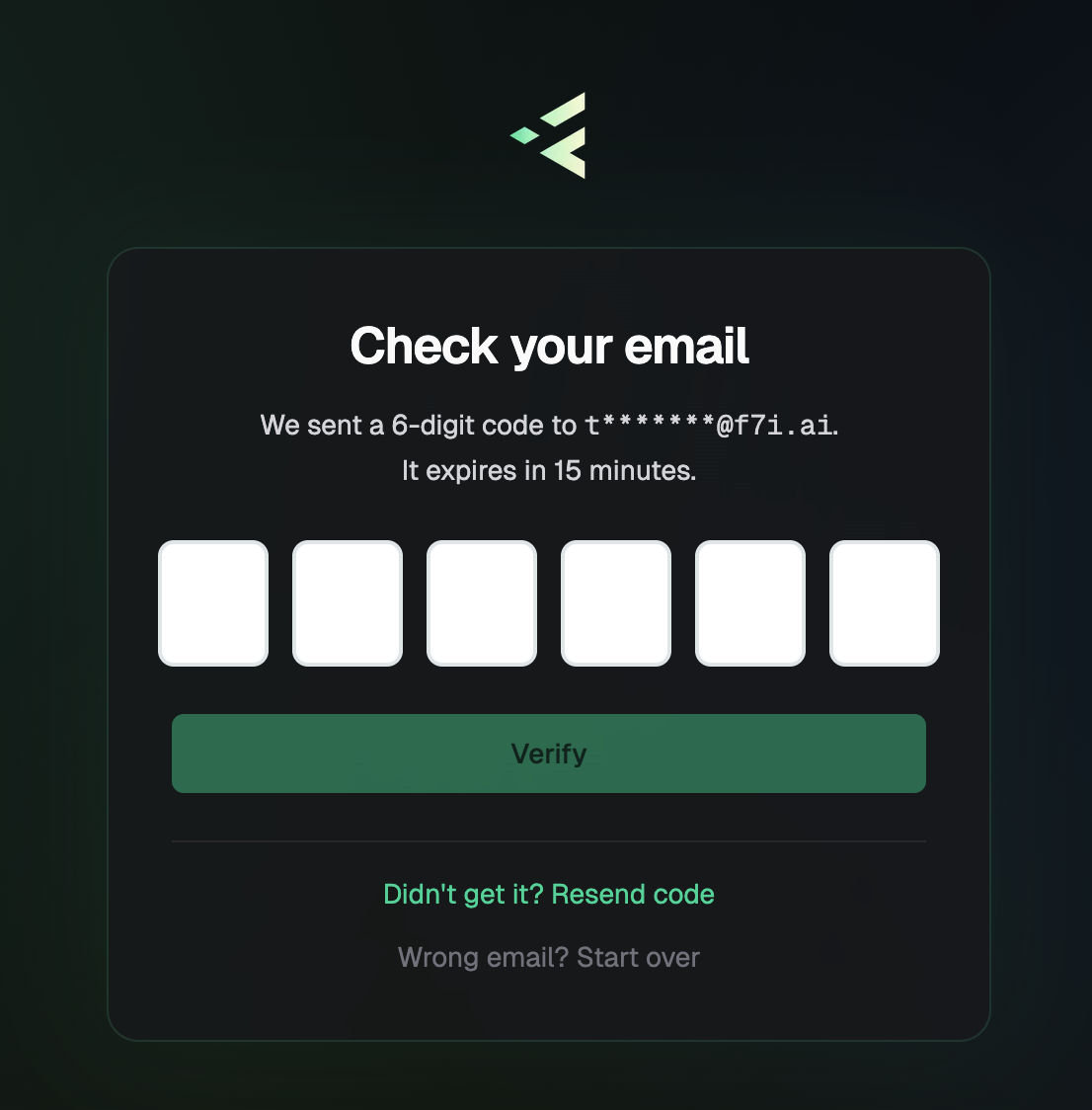
We'll email a 6-digit code to your address to confirm it's really you. The code expires in 15 minutes.
- Open the email titled "Your Factory AI verification code"
- Enter the 6 digits into the code field
- Click Verify
If you don't see the email:
- Check your spam or junk folder
- Click Didn't get it? Resend code to request a new one
- Click Wrong email? Start over if you need to use a different inbox
Step 4: Set a Password
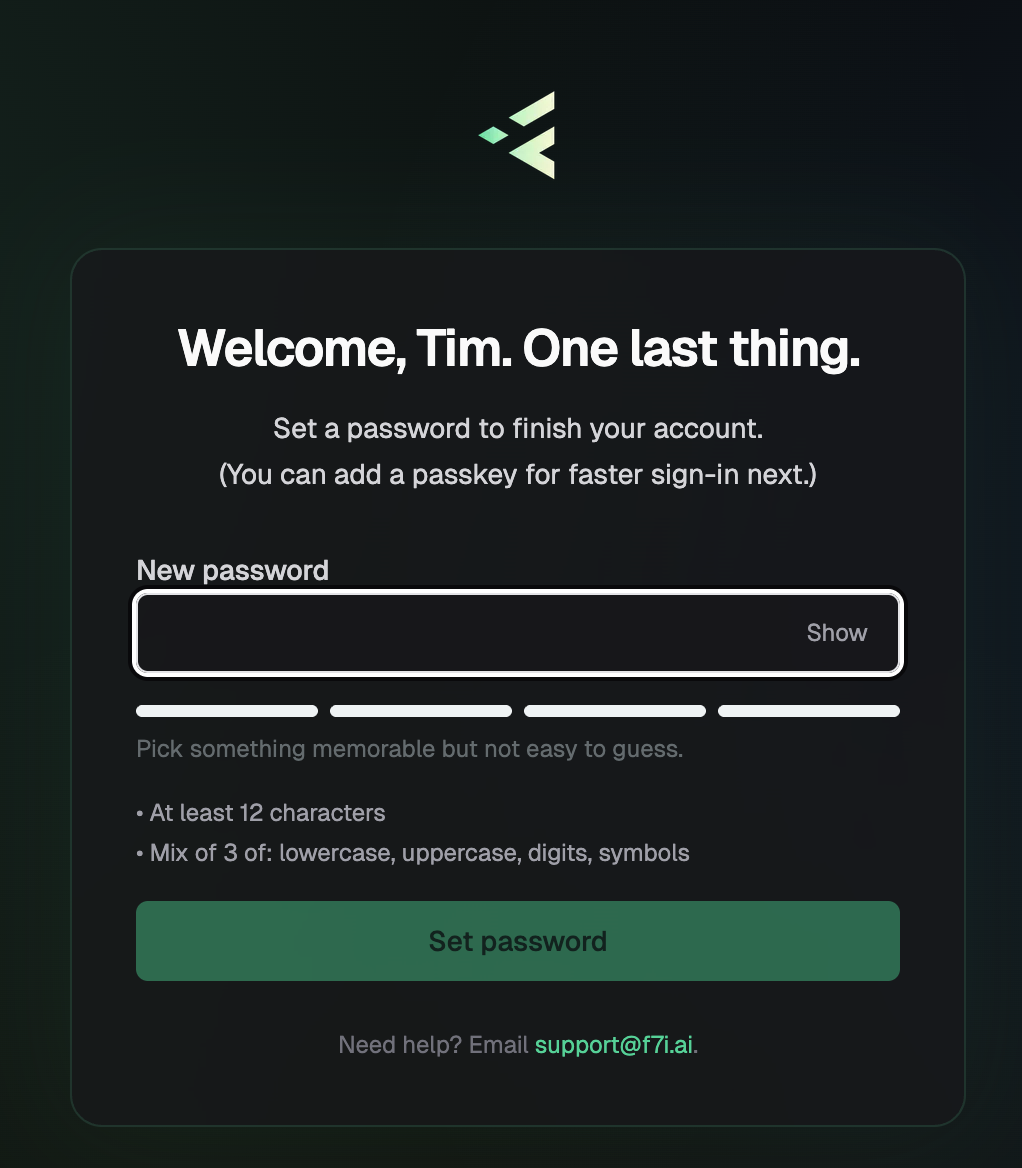
After verification, you'll be welcomed by name and asked to set a password.
- Type a new password into the New password field
- Watch the strength meter — it fills as your password gets stronger
- Click Set password
- At least 12 characters
- A mix of at least 3 of the following: lowercase letters, uppercase letters, digits, symbols
Pick something memorable but not easy to guess. A passphrase made of unrelated words (with a number and symbol) is both strong and easy to remember.
Step 5: Add a Passkey (Recommended)
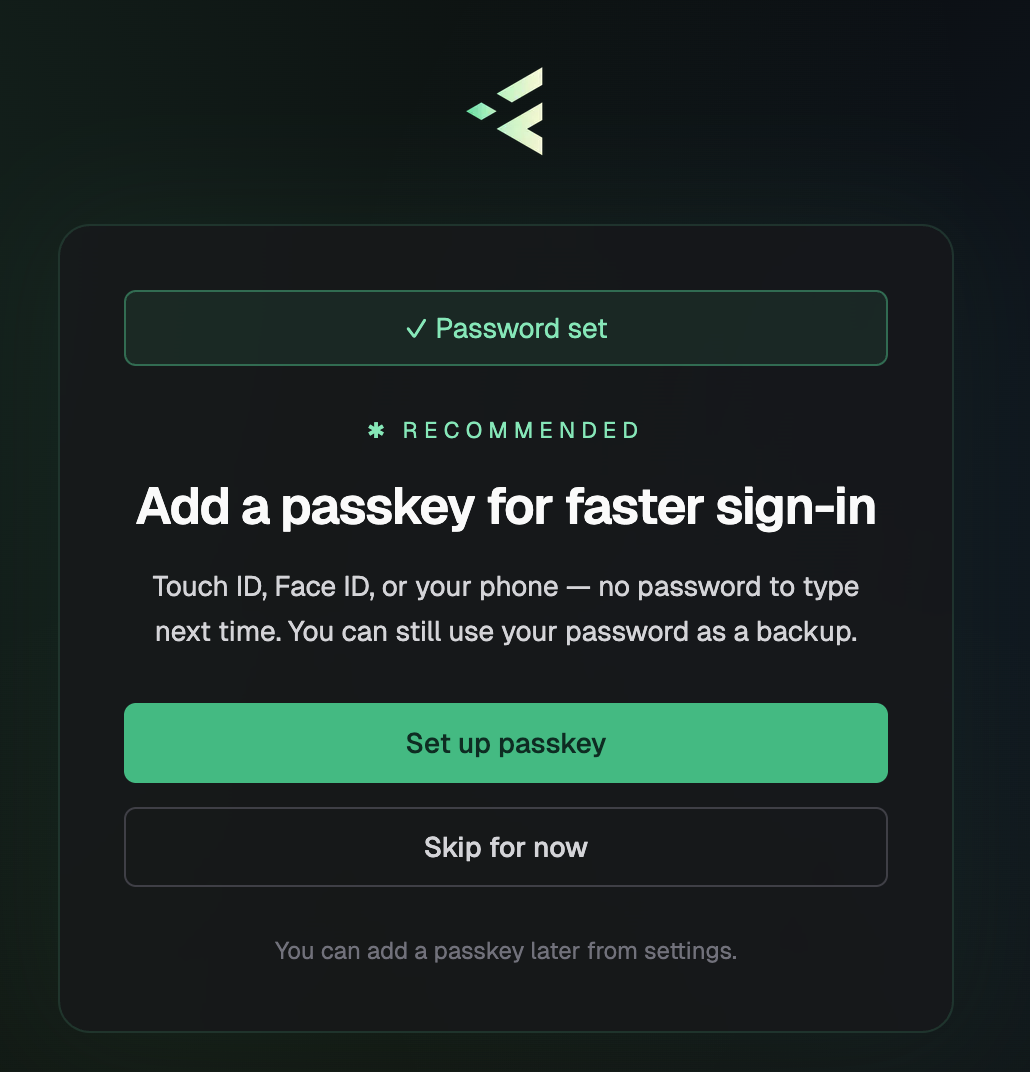
Once your password is saved, we'll offer to set up a passkey. We strongly recommend it — passkeys let you sign in with Touch ID, Face ID, Windows Hello, or your phone, with no password to type.
You have two options:
- Set up passkey — your browser will prompt you to authenticate with your device's biometrics or security key
- Skip for now — you can add a passkey later from Settings → Security
Your password still works as a backup either way.
For more on passkeys — supported devices, managing multiple keys, and troubleshooting — see Setting Up Passkeys in the login guide.
After Sign-Up
Once your account is set up, you'll land in the workspace you were invited to. From there:
- Your email and password are how you sign in next time at
https://[workspace].f7i.ai/login - If you set up a passkey, you'll be prompted to use it automatically on future logins
- An admin will have already assigned your role and site permissions — no extra setup required
See Logging into Predict for the regular sign-in flow.
Troubleshooting
The "Accept invitation" button doesn't work
- Copy the backup link below the button and paste it into your browser
- Make sure you're opening the link in the same browser you'll use to sign in
The email field is wrong on the acceptance page
- The invite is tied to a specific email address — that field can't be edited
- Ask the person who invited you to send a new invite to your correct address
6-digit code didn't arrive
- Check your spam or junk folder
- Confirm the masked email shown on the verification screen is the inbox you have access to
- Click Resend code — it's safe to do this more than once
- If it still doesn't arrive after a few minutes, contact support
"Code expired" or "invalid code" error
- Codes expire after 15 minutes — request a new one with Resend code
- Make sure you're entering the code from the most recent email, not an older one
My password isn't accepted
- Check the requirements: 12+ characters, mix of 3 of (lowercase, uppercase, digits, symbols)
- Watch the strength meter — if it stays empty, you don't yet meet the requirements
The invitation has expired
- Ask the person who invited you to send a fresh invite
- Expired invites can't be renewed — a new one will be issued
Need Help?
If you get stuck, email support@f7i.ai or reply directly to your invitation email — we'll get back to you.